
Nano Banana 2.1 AI Image Generator
Create an image from a text prompt or edit your reference photos with Nano Banana 2.1. Choose your aspect ratio, resolution and output format in the tool below.
Loading the Nano Banana 2.1 generator…
The image workspace will appear here. You can read the prompts and specifications below while it loads.
What is Nano Banana 2.1?
Nano Banana 2.1 is an AI image generation and editing model available in Z Image Turbo. It accepts a text prompt with optional reference images, supports up to 14 references, and offers 1K, 2K and 4K output in JPG or PNG. One 1K image costs 4 credits. Describe a new scene or upload photos and explain the changes you want.
- Input
- Text prompt + optional reference images
- Output
- 1K / 2K / 4K · JPG / PNG
- Starting cost
- 4 credits per 1K image
Creative directions and Nano Banana 2.1 prompts
Explore four different image briefs. Each illustration comes with the prompt used to generate it and a practical starting point for your own project.
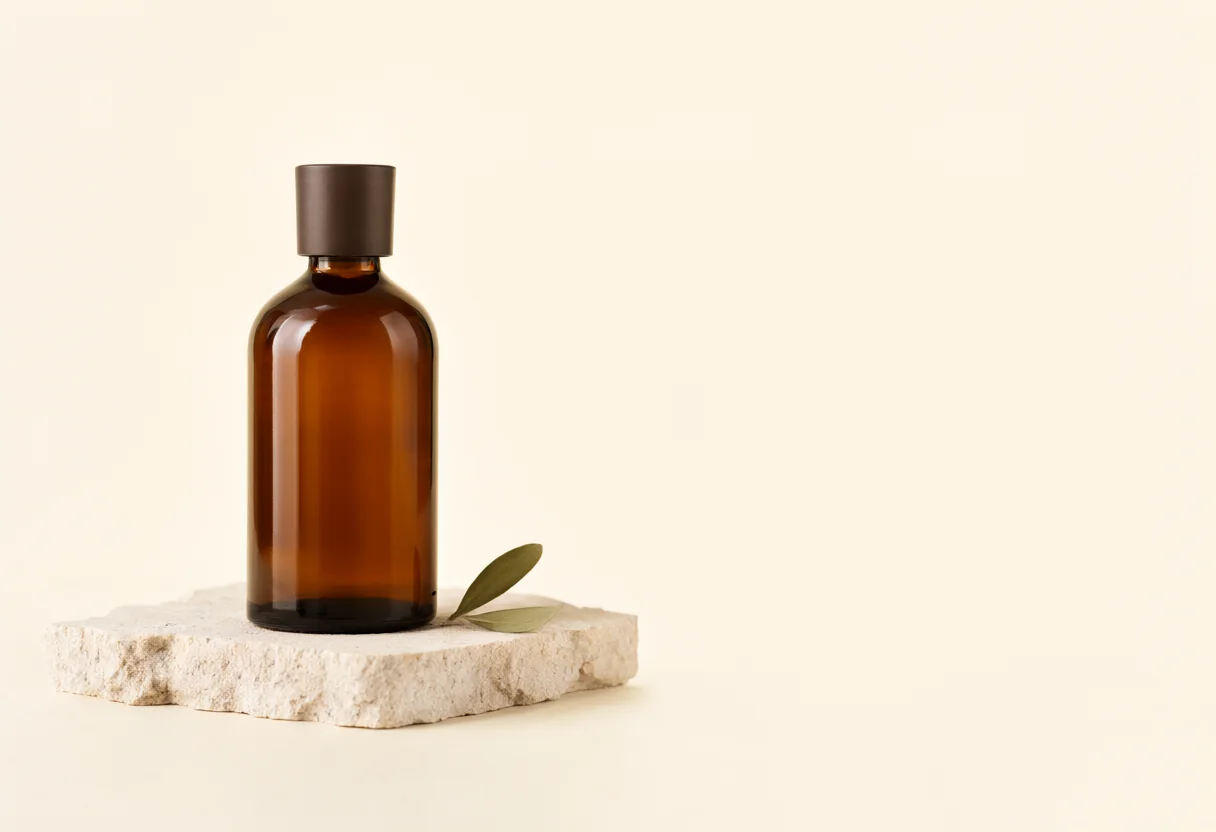
Studio product photography
Use a 3:2 frame for a product story. Specify glass, stone and lighting separately so you can review each material in the result.
An editorial studio photograph of one unbranded amber glass skincare bottle with a matte dark brown cap on a cream limestone block. Place the bottle slightly left of center, with one small olive leaf beside the block and ample breathing room around the objects. Soft light from the left creates realistic amber glass reflections and a gentle contact shadow. Use an ivory background, sandstone beige and muted brown in a landscape composition. No text, no letters, no numbers, no logo, no watermark, no border.
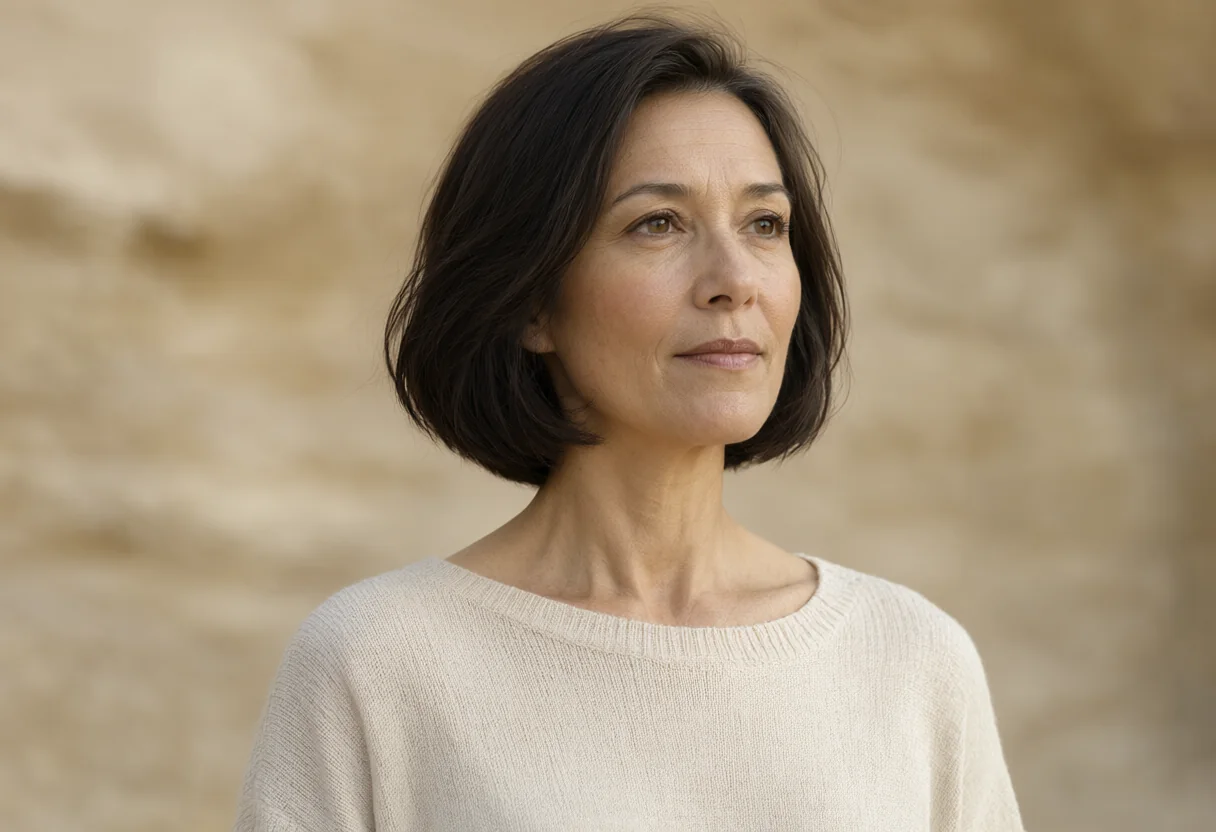
Editorial portrait
Define the crop, light and background before adding style details. For portraits, review eyes, skin texture and proportions at full size.
An editorial chest-up portrait of a fictional adult woman with a short dark bob, wearing a simple cream knit sweater against a softly blurred sandstone studio background. Place her slightly right of center with breathing room to the left and keep both hands outside the frame. Natural side light, realistic skin texture, calm expression and believable proportions. Use warm ivory, beige and muted brown, with no jewelry or extra objects. Landscape composition. No text, no letters, no numbers, no logo, no watermark, no border.
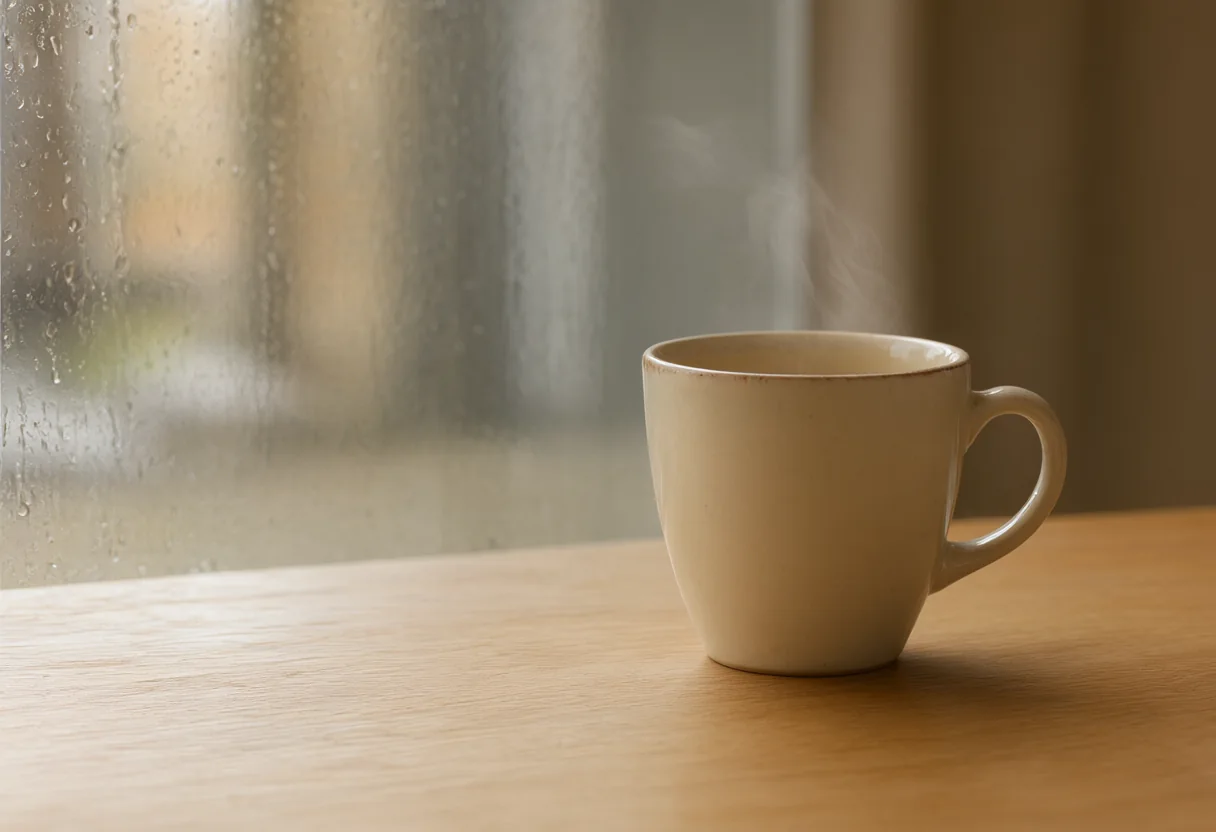
Campaign image with space for copy
Choose a landscape frame and reserve one side for a headline. Add text in your layout editor after generation, so the same image works across languages.
An editorial still-life photograph of one cream ceramic coffee cup on a light oak table beside a rain-streaked window. Place the cup in the right third of a wide landscape composition and leave the left half uncluttered for a headline added later. Show a subtle wisp of steam, natural window light and realistic ceramic texture. Use warm ivory, sandstone beige and muted brown, with a quiet blurred background and no extra objects. No text, no letters, no numbers, no logo, no watermark, no border.
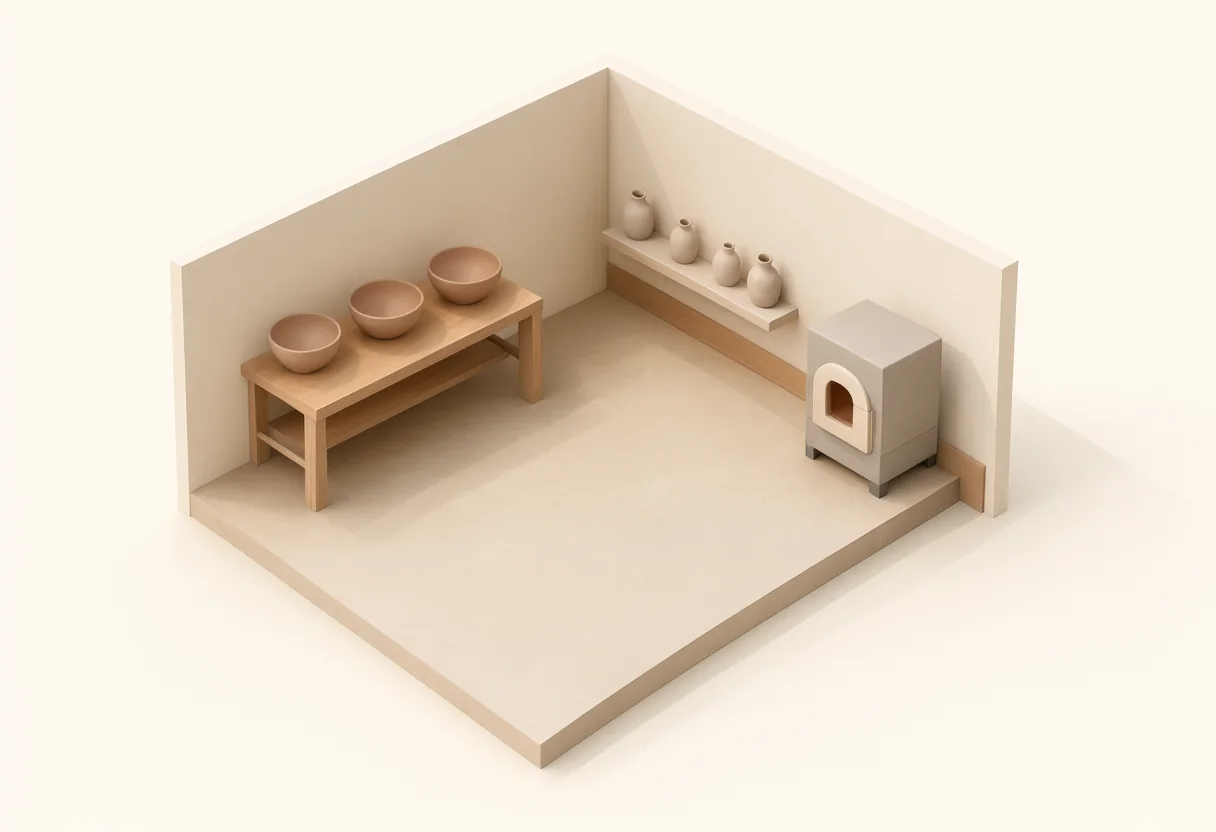
Interior concept illustration
Name the important objects and their positions. A compact isometric brief helps you discuss a floor plan and art direction before detailed design.
An isometric three-dimensional concept illustration of a small pottery studio, viewed from a gentle elevated angle. A workbench with exactly three clay bowls sits on the left, a low shelf holding four simple ceramic vessels sits on the back wall, and a small kiln stands on the right. Keep each object distinct, with a coherent floor plan and generous space around the scene. Matte clay, limestone and oak materials, soft daylight, warm ivory, terracotta beige and muted brown. Landscape composition, no people. No text, no letters, no numbers, no logo, no watermark, no border.
How to use Nano Banana 2.1
Describe the image
Enter a subject, composition, lighting and style. For an edit, state the requested change and the details you want to preserve.
Add reference photos
Upload images if the task depends on an existing product, character or scene. With multiple references, explain each image's role in your prompt.
Choose settings and generate
Select the aspect ratio, resolution and JPG or PNG format. Check the displayed credit cost and account access, then click Generate.
Review and download
Inspect the result for unwanted changes, text errors and small details. Download the image or revise the prompt and generate a new version.
What can you create with Nano Banana 2.1?
Choose a workflow for the asset you need: a product listing, a portrait, a campaign layout or an early visual concept.
E-commerce product images
Merchants can draft studio scenes or seasonal compositions around a product reference. Describe the background and light while identifying the shape, color and packaging details that must stay recognizable.
Before publishing: compare the generated product with your source photo, especially labels, dimensions and accessories.
Portraits and character mood boards
Creators can explore a subject in different clothing, light and settings for a visual brief. Provide a reference when appearance matters, and explain the role of each image if you use several references.
Before assembling a set: compare facial features, proportions and clothing details across all versions.
Social posts and marketing banners
Designers can plan the subject placement around the final headline, button and crop. Start with a frame that matches the placement, and keep essential content inside the safe area.
For multilingual campaigns: generate the image without lettering, then add translated copy as editable text.
Concept art and visual proposals
Art teams can turn a written brief into an initial environment or object arrangement. Describe viewpoint, materials and object count to make alternatives easier to discuss with a client.
For review: check perspective and object placement before using the draft as a reference for detailed work.
Image generation and editing capabilities
Use the prompt to guide the composition, references to explain what matters, and output settings to match the final placement.
Build a scene from a text prompt
Describe the subject, viewpoint and spatial relationships to create a new image without a source photo. A precise object count and material description make a scene easier to evaluate than a list of vague style terms.
For a room concept, specify where the workbench, shelf and light source should sit.
Guide edits with reference images
Upload a product or portrait reference and explain which details to preserve and which to change. With several images, assign each a role such as subject, background or visual style.
Download this illustration as a practice reference. Add it to the tool and request a new background while preserving the bottle shape.
Download the reference imageChoose framing and inspect the details
Select the aspect ratio before generating, then choose 1K, 2K or 4K for the intended placement. Inspect edges, reflections and small details at full size before downloading as JPG or PNG.
The enlarged illustration shows what to inspect. Choosing PNG does not itself create a transparent background.
Nano Banana 2.1 specifications
| Parameter | Supported value |
|---|---|
| Model | Nano Banana 2.1 |
| Input | Text prompt + optional reference images |
| Reference images | Up to 14 |
| Resolution options | 1K / 2K / 4K |
| Output formats | JPG / PNG |
| Fixed aspect ratios | 1:1 · 2:3 · 3:2 · 1:4 · 4:1 · 3:4 · 4:3 · 4:5 · 5:4 · 1:8 · 8:1 · 9:16 · 16:9 · 21:9 |
| Automatic aspect ratio | Available with reference images in the workspace; follows reference framing. |
Nano Banana 2.1 vs Nano Banana 2 Pro
Compare the settings exposed by these two separate models in Z Image Turbo. A larger reference limit can help when a brief needs several visual inputs.
Compare models with the same image brief
Use the same prompt, reference images, aspect ratio and resolution in both models. The illustration is a reference for the exercise; the table below lists the settings available in this workspace.
- Inspect whether the subject shape and essential details follow the reference.
- Compare composition, shadows and material edges at the same viewing size.
- Review your task results and actual credit cost before choosing a workflow.
| Setting | Nano Banana 2.1 | Nano Banana 2 Pro |
|---|---|---|
| Reference images | Up to 14 | Up to 5 |
| Resolution options | 1K / 2K / 4K | 1K / 2K / 4K |
| Output formats | JPG / PNG | JPG / PNG |
Nano Banana 2.1 pricing and credits
The credit cost depends on resolution. Text-to-image and reference-image edits use the same resolution-based rate, regardless of reference count.
| Resolution | Credits per image | When to choose it |
|---|---|---|
| 1K | 4 credits | Draft compositions and everyday web images |
| 2K | 6 credits | Larger layouts and closer detail review |
| 4K | 9 credits | Large image placements and detailed source assets |
Multiple outputs consume credits per image. Plan prices, credit availability and any model-access requirements are shown in your account and on the pricing page.
View credit plansNano Banana 2.1 FAQ
Is Nano Banana 2.1 free to use?
Generation consumes account credits. If your account has eligible trial or reward credits and access to this model, you can use those credits. Check your current balance and plan before starting a task.
How do I write a prompt for several reference images?
Explain which image supplies the subject, which supplies the setting and which supplies the visual style. State what should change and what should be retained. Review the output because a reference is guidance, not a guarantee of exact reproduction.
Can I use generated images commercially?
Check the applicable model and platform terms for your intended use. You need permission to use uploaded photos, brands and likenesses. Review generated content for third-party rights before publishing or selling it.
How long does image generation take?
Completion time varies with resolution, task complexity and service load. Follow the task status in the tool and check your generation history if you leave the page. There is no fixed completion time for every request.
Does choosing 4K upscale an existing photo?
The resolution setting selects the output size for a new generation or reference-guided edit. An edit can change image content. For enlarging an existing image, use a dedicated image upscaler and compare the result with the original.
Can I edit only a masked region?
This model's tool uses a prompt and reference images to guide edits. For an explicit mask-based workflow, use the separate AI Image Editor linked below and mark the region you want to change.
Create your next image with Nano Banana 2.1
Start with a prompt or a reference photo, choose the settings for your project, and review your generated image.