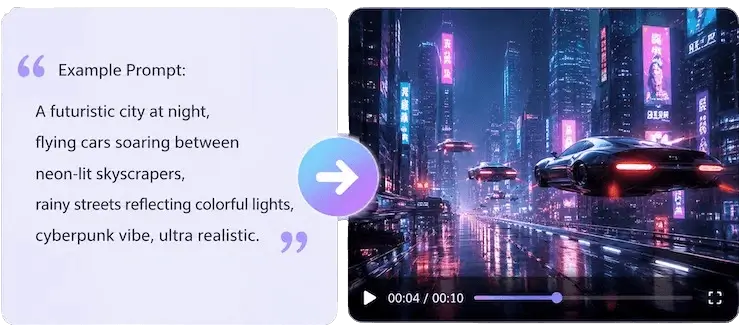
Prompt scenes with motion in mind
Write the subject, action, camera move, mood, and lighting in one brief. Gemini Omni Video turns that structure into a coherent clip instead of a single still image.
Gemini Omni Video workspace
Turn written ideas and reference images into polished AI video clips. The Gemini Omni Video Generator is built for fast concept tests, social assets, product shots, and cinematic motion experiments in one browser workspace.
720p
Fast drafts
1080p
Campaign review
4K
Premium output
16:9 / 9:16
Landscape or vertical
Try it now
The embedded generator opens with Gemini Omni Video selected, so you can write a prompt, add visual references when needed, choose duration, resolution, and aspect ratio, then review the result without leaving this page.

High-quality text-to-video and image-to-video generation with flexible duration, aspect ratio, and resolution up to 4K.
Gemini Omni Video is useful when a static prompt is not enough. It helps you test motion, pacing, framing, and style before you spend production time on a full campaign.
Write the subject, action, camera move, mood, and lighting in one brief. Gemini Omni Video turns that structure into a coherent clip instead of a single still image.
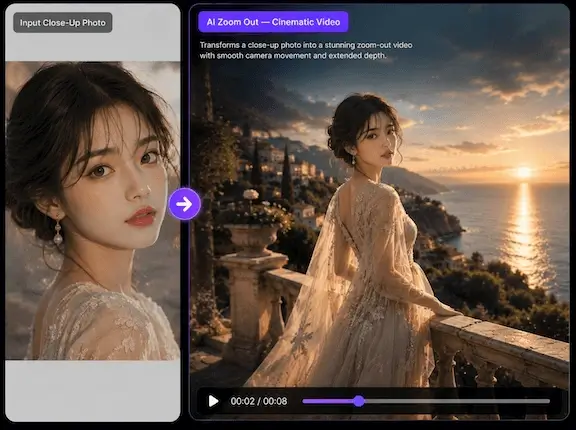
Use images to anchor characters, products, or visual direction. This is helpful for brand continuity, product demos, style tests, and before/after creative reviews.
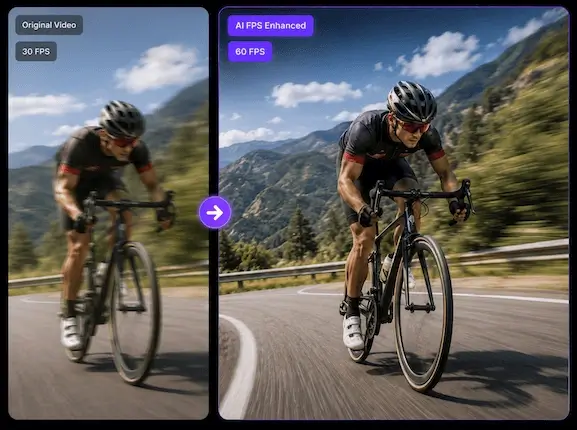
Create quick 720p drafts, sharper 1080p clips, or premium 4K renders. Pick 16:9 for web and presentations, or 9:16 for short-form social video.
A strong Gemini Omni Video workflow starts with a simple creative brief and improves through small, deliberate changes.
Describe the subject, setting, action, and visual style. Mention camera movement only when it matters, such as slow push-in, orbit, handheld, or drone shot.
Upload a product, character, or mood reference when the video should preserve an identity or visual direction. Keep references clean and relevant.
Use shorter clips for exploration, then move to higher resolution once the prompt is stable. This keeps credit use efficient while you refine the idea.
Change one variable at a time: action, camera, style, or lighting. Save prompts that produce reliable results for repeat campaigns.
The Gemini Omni Video Generator works best for teams that need to validate movement and creative direction quickly.
Create reveal shots, demo loops, launch teasers, and product mood videos before booking a production sprint.
Generate vertical motion concepts for TikTok, Reels, Shorts, ads, and creator briefs without starting from a blank timeline.
Turn a scene description into a moving draft that directors, clients, and designers can react to more easily than static frames.
Compare different lighting, camera moves, styles, and pacing ideas before committing to the final visual language.
Answers for creators comparing Gemini Omni Video, text-to-video workflows, image-to-video references, quality settings, and credit planning.
The Gemini Omni Video Generator is a Z Image Turbo workspace for creating AI video clips from text prompts and optional image references. It focuses on flexible duration, aspect ratio, and resolution control.
Yes. You can start with a text prompt, and you can add images when you want to guide identity, product shape, color palette, or overall visual direction.
The Gemini Omni Video workflow supports 720p, 1080p, and 4K output options. Use lower resolution for fast drafts and higher resolution when the prompt is ready for review.
You can choose landscape 16:9 or vertical 9:16. Landscape fits websites, decks, and YouTube, while vertical works well for TikTok, Reels, Shorts, and mobile ads.
The page supports 4, 6, 8, and 10 second clip durations. Shorter durations are useful for rapid tests, and longer clips give more room for motion and scene development.
A good prompt names the subject, action, environment, camera motion, lighting, and mood. Avoid stacking too many unrelated ideas in one prompt; focused briefs usually produce cleaner video.
You can use generated clips for creative and commercial projects, provided your prompts, uploads, and outputs follow the content policy and you have the rights to any source material you provide.
Credits depend on the selected resolution and duration. Draft at lower settings first, then switch to higher quality once the creative direction is approved.
Open the generator, describe the motion you want, and produce a first clip in minutes. Keep refining until the video matches the scene in your head.